
How to use BookPhysio.inGuides for physiotherapists
Setting up your practice profile, verification, availability, booking requests, SOAP notes, the clinical AI tools, and notifications. Open a question to see the steps.
How to create your practice profile on BookPhysio.in
Register your practice, add your credentials and clinic details, and set what patients see before they book.
How to create your practice profile on BookPhysio.in
Register your practice, add your credentials and clinic details, and set what patients see before they book.
You register with your professional details, add your registration number, specialties, fee and clinic information, then submit for verification. A complete profile goes live as soon as your registration is approved.
Step 1: Register your practice
Create your account with your name, email and professional details. Sign-in uses a six-digit code sent to your email.
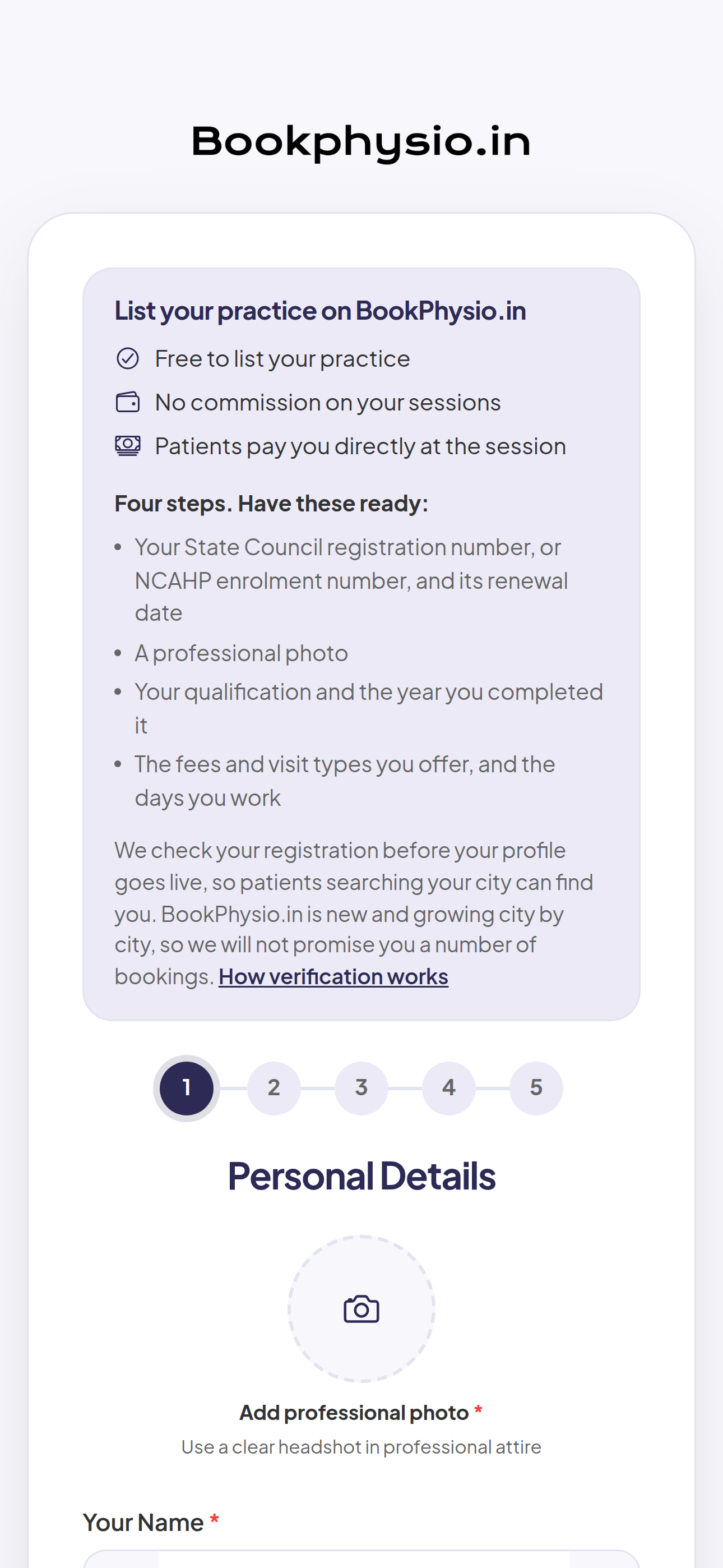
Example screen. The physiotherapists, ratings, prices and counts shown are made up for this guide. Step 2: Add your registration number
Enter your State Council registration, or your NCAHP enrolment. This is what our team checks during verification.
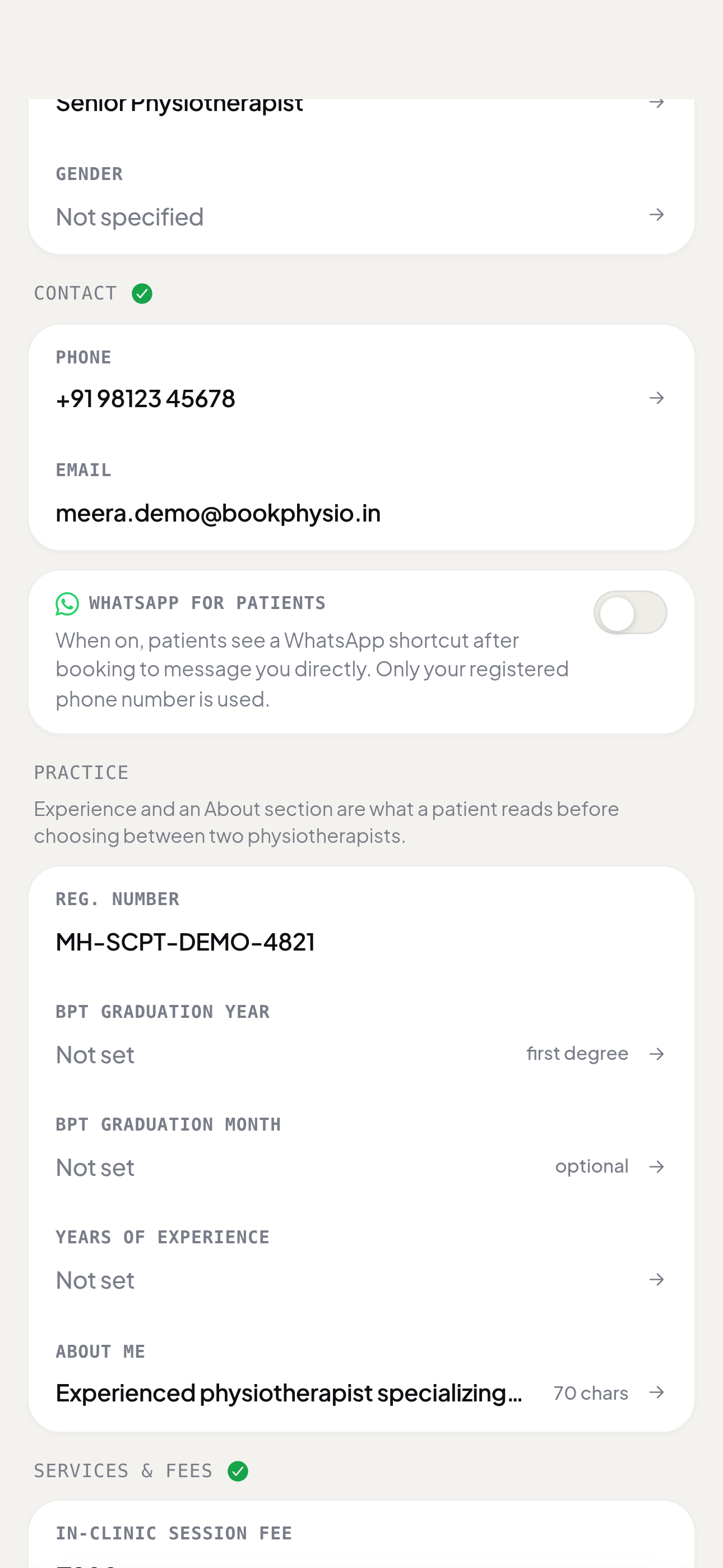
Example screen. The physiotherapists, ratings, prices and counts shown are made up for this guide. Step 3: Add your specialties and fee
Choose the specialties you practise and set your consultation fee in rupees. Patients see both before they book.
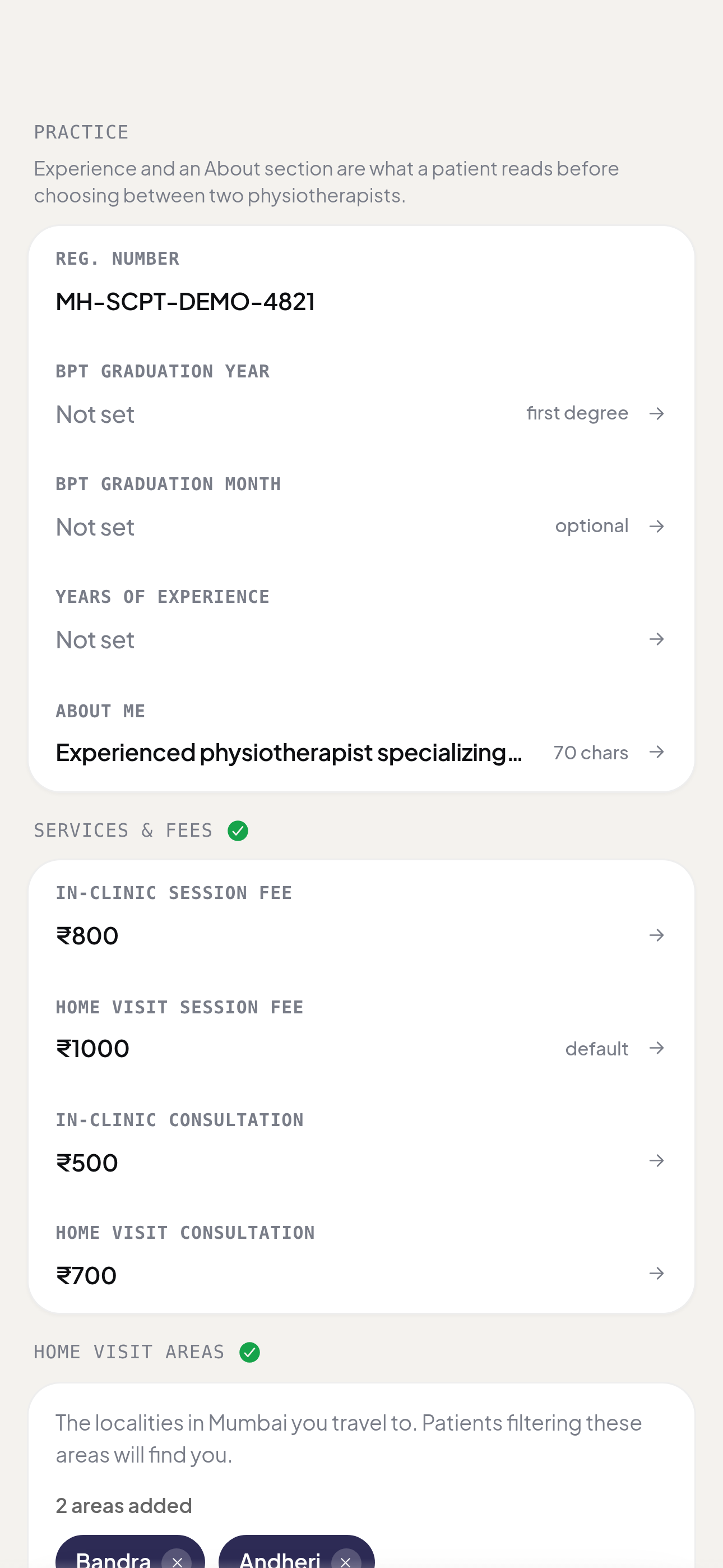
Example screen. The physiotherapists, ratings, prices and counts shown are made up for this guide. Step 4: Add your clinic details and photo
Add your clinic name, address, pincode and a map link, plus a profile photo. Anything still missing shows up under Action needed on your dashboard.
Step 5: Submit for verification
Once your details are in, your profile goes to our team for review. You can keep editing while you wait.
Signed in already? Open this in the app and I will walk you through it.
- Which registrations do you accept?
- A State Council registration, or an NCAHP enrolment. Membership of a professional body such as the Indian Association of Physiotherapists is not a registration, so it cannot stand in for one. You are welcome to list it on your profile as a membership.
- Can I edit my profile after it goes live?
- Yes. Your profile stays editable at any time from the Profile tab.
See also: How verification works for physiotherapists on BookPhysio.in, How to set your availability on BookPhysio.in
How verification works for physiotherapists on BookPhysio.in
What our team checks, and what you can do while you wait.
How verification works for physiotherapists on BookPhysio.in
What our team checks, and what you can do while you wait.
Our team checks the registration you supplied with your State Council, or your NCAHP enrolment. The decision comes to your registered email. Your profile is not listed to patients until it is approved.
Step 1: Supply your registration details
Add your registration number during signup, then set its expiry date from the Action needed panel on your dashboard. An incomplete entry is the most common reason a review takes longer.
Step 2: Complete the rest of your profile while you wait
Fill in your bio, fee, clinic details and photo now. A complete profile goes live the moment your registration is approved, rather than a bare one.
Step 3: Wait for the review
You do not need to check back. The decision comes to you by email either way.
Step 4: Watch for the decision email
The outcome comes to your registered email address. Once approved, your profile is listed and patients can send you booking requests.
Signed in already? Open this in the app and I will walk you through it.
- How long does verification take?
- We do not publish a time, because we have not measured one yet and a figure we cannot stand behind is worse than none. You get an email as soon as a decision is made, and you can finish the rest of your profile while you wait.
- What happens if my registration cannot be verified?
- You are told by email, with what is missing, and you can correct your details and resubmit.
- Can patients find me before I am verified?
- No. Your profile is listed to patients only after approval.
See also: How to create your practice profile on BookPhysio.in
How to set your availability on BookPhysio.in
Set your working hours, session length and visit types so patients can only book slots you have opened.
How to set your availability on BookPhysio.in
Set your working hours, session length and visit types so patients can only book slots you have opened.
Your calendar controls exactly which slots patients can see. Set your working hours, how long a session runs, and whether you take clinic visits, home visits, or both. Nothing outside what you open can be booked.
Step 1: Open your schedule
Tap Profile in the bottom bar, then open Availability. Schedule in the bottom bar shows your calendar, not the hours you set.
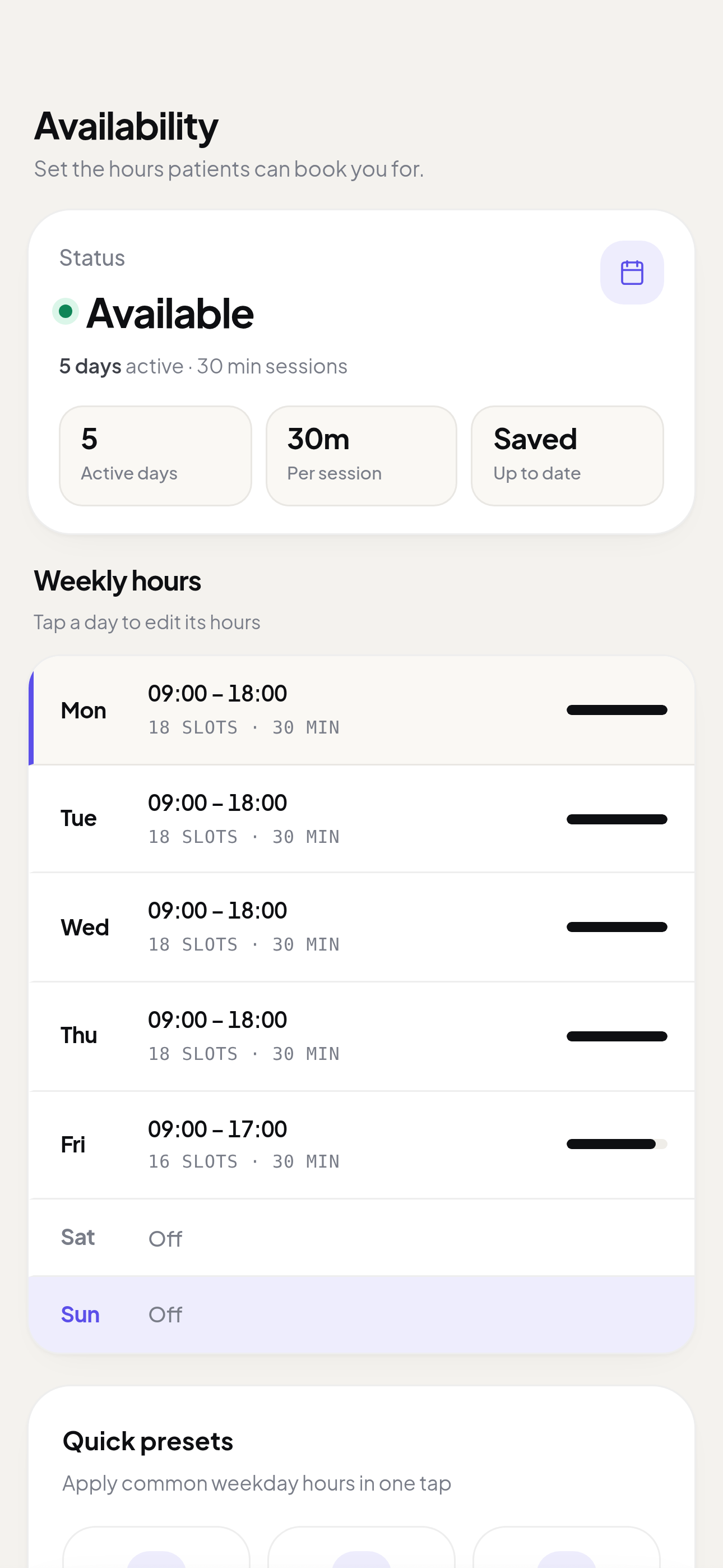
Example screen. The physiotherapists, ratings, prices and counts shown are made up for this guide. Step 2: Set your working hours
Choose the days and times you see patients. Patients are shown only these slots.
Step 3: Choose your session length
Set how long one session runs. Your open hours are divided into slots of that length.
Step 4: Choose your visit types
Say whether you take clinic visits, home visits, or both. If you take home visits, list the areas you travel to under Home visit areas on your profile.
Signed in already? Open this in the app and I will walk you through it.
- Can I block a single day off?
- Yes. Close the hours for that day in your calendar and no slots are offered on it.
- What happens to a booking already made for a slot I close?
- An existing booking stays. Closing hours affects what patients can book from then on, not what is already agreed.
See also: How to accept or decline a booking request on BookPhysio.in
How to accept or decline a booking request on BookPhysio.in
A booking arrives as a request. Accepting it confirms the appointment and tells the patient by email.
How to accept or decline a booking request on BookPhysio.in
A booking arrives as a request. Accepting it confirms the appointment and tells the patient by email.
Patients send requests against the slots you have opened. Nothing is confirmed until you accept, so the decision is always yours. The patient is emailed either way.
Step 1: Open your requests
New booking requests appear on your dashboard and under Patients. Each shows the patient, the time and the visit type.
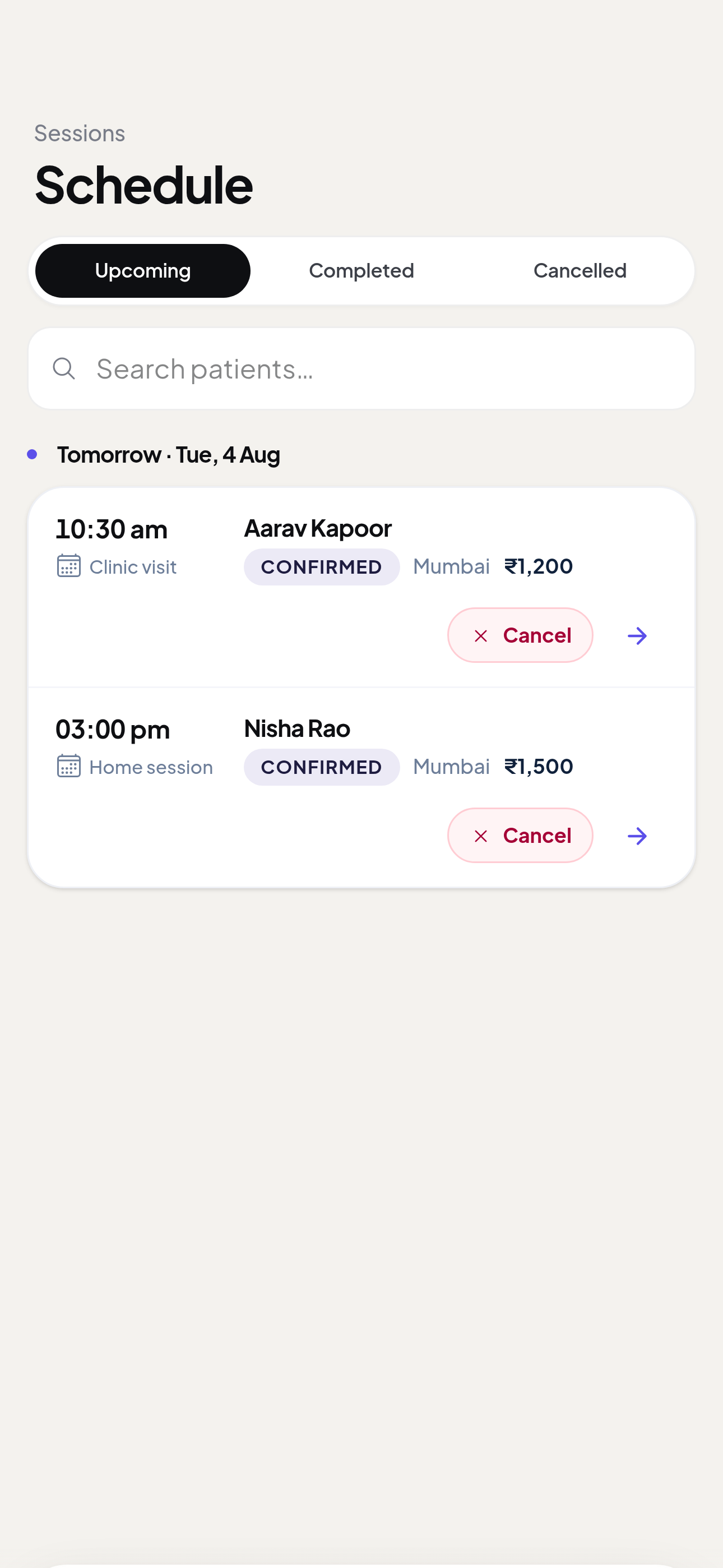
Example screen. The physiotherapists, ratings, prices and counts shown are made up for this guide. Step 2: Review the request
Check the time, the visit type and, for a home visit, the area. Open the request to see the detail.
Step 3: Accept or decline
Accepting confirms the appointment and releases your clinic details to the patient. Declining frees the slot.
Step 4: The patient is emailed
Either decision goes to the patient by email straight away. You do not need to contact them separately.
Signed in already? Open this in the app and I will walk you through it.
- What happens if I do not respond?
- The request stays pending and the patient sees it as pending. Responding quickly, either way, is better for them than silence.
- How do I get paid?
- The patient pays you directly at the session, by cash, UPI or card. BookPhysio.in does not hold your money and takes no commission.
How to change your profile photo on BookPhysio.in
Replace the photo patients see on your profile, in four taps from your dashboard.
How to change your profile photo on BookPhysio.in
Replace the photo patients see on your profile, in four taps from your dashboard.
Open Profile, tap Edit profile, tap the photo, and choose a new image. It replaces the old one straight away and patients see it on your listing.
Step 1: Open your profile
From your dashboard, tap Profile in the bottom bar. This is the same profile patients see.
Step 2: Tap Edit profile
The Edit profile button sits near the top of your profile, under your name.
Step 3: Tap the photo
Tap your current photo, or the empty photo circle if you have not added one. The button is labelled Change photo.
Step 4: Choose a new image
Pick a JPEG, PNG or WebP from your phone. Use a clear headshot in professional attire. Keep it under 12 MB.
Step 5: Check it saved
The new photo appears immediately on the edit screen. Go back to Profile to see it exactly as a patient will.
Signed in already? Open this in the app and I will walk you through it.
- What photo size should I use?
- Any clear square-ish headshot works. JPEG, PNG and WebP are accepted, up to 12 MB.
- Do I need a photo at all?
- It is not required to be listed, but a profile with no photo appears under Action needed on your dashboard. A profile with one is easier for a patient to choose from.
See also: How to create your practice profile on BookPhysio.in, How to change your consultation fee on BookPhysio.in
How to change your consultation fee on BookPhysio.in
Update the fee patients see before they book, from the Edit profile screen.
How to change your consultation fee on BookPhysio.in
Update the fee patients see before they book, from the Edit profile screen.
Open Profile, tap Edit profile, change the consultation fee, and save. Patients see the new fee on your listing. You still collect it directly at the session.
Step 1: Open your profile
Tap Profile in the bottom bar of your dashboard.
Step 2: Tap Edit profile
The Edit profile button is near the top, under your name.
Step 3: Find the fee field
Scroll to Services & fees. Set your In-clinic session fee in whole rupees, digits only.
Step 4: Save
Save the form. Your listing updates and the new fee shows to patients from that point on.
Signed in already? Open this in the app and I will walk you through it.
- Does a change affect bookings already made?
- No. A booking already agreed keeps the fee it was made under. Settle anything unclear with the patient directly, since payment happens between the two of you.
- Can I charge a different fee for a home visit?
- Yes. Home-visit fees are set separately on the same screen, and patients see the one that matches the visit type they choose.
See also: How to change your profile photo on BookPhysio.in, How to create your practice profile on BookPhysio.in
How to write and save a SOAP note on BookPhysio.in
Record a SOAP note against a session from the patient chart, and draft it faster with the clinical AI.
How to write and save a SOAP note on BookPhysio.in
Record a SOAP note against a session from the patient chart, and draft it faster with the clinical AI.
Open the patient from Patients, go to the Notes tab, choose the session, write the note and save it. Sessions show whether a note is recorded. The clinical AI can draft one for you to review and edit, but it never files a note by itself.
Step 1: Open Patients
Tap Patients in the bottom bar of your dashboard.
Step 2: Open the patient
Tap the patient from your roster to open their chart.
Step 3: Go to the Notes tab
The chart has a Notes tab listing that patient’s sessions. Each session shows either SOAP recorded or No note yet.
Step 4: Choose the session
Tap the session you are writing about. The note editor opens for that session.
Step 5: Write the four sections
Fill in Subjective, Objective, Assessment and Plan. Keep it concise and clinically precise.
Step 6: Save the note
Save it against the session. The session then shows SOAP recorded in the list.
Signed in already? Open this in the app and I will walk you through it.
- Can the AI write the note for me?
- It can draft one. Tap AI in the bottom bar, choose Draft SOAP, and describe the case. What it produces is a draft for you to review, edit and save yourself. It is not a diagnosis and nothing is filed to a patient record without you saving it.
- Can the patient see my note?
- Patients see the records their physiotherapist shares with them, under Records in their app. Write with that in mind.
See also: How to use the clinical AI tools on BookPhysio.in, How to accept or decline a booking request on BookPhysio.in
How to use the clinical AI tools on BookPhysio.in
Draft assessments, SOAP notes, treatment plans and home exercise programmes, with you reviewing every word.
How to use the clinical AI tools on BookPhysio.in
Draft assessments, SOAP notes, treatment plans and home exercise programmes, with you reviewing every word.
Open AI Tools from the bottom bar and pick a mode. Everything it produces is a draft for a qualified physiotherapist to review and edit. It does not diagnose and it does not save anything to a patient record on its own.
Step 1: Open the AI tab
Tap AI in the bottom bar of your dashboard.
Step 2: Pick the mode you need
The modes are Assessment outline, Draft SOAP, Treatment plan, HEP program, Differential Dx, Red flags and Progression review.
Step 3: Describe the case
Give the presentation in your own words. The more specific the history and findings, the more useful the draft.
Step 4: Review and edit every line
Read what it produced and correct it against your own examination. Your clinical judgement is what decides, not the draft.
Step 5: Use it where it belongs
Copy a SOAP draft into the note editor on the patient’s chart and save it there, so it is recorded against the right session.
Signed in already? Open this in the app and I will walk you through it.
- Does the AI diagnose patients?
- No. It produces drafts to support a qualified physiotherapist’s own assessment. It does not diagnose, and nothing it writes reaches a patient record unless you save it.
- Is a Differential Dx list a diagnosis?
- No. It is a prompt for your thinking, to be confirmed or ruled out by your own examination.
See also: How to write and save a SOAP note on BookPhysio.in
How to install the BookPhysio.in app and turn on notifications
Add BookPhysio.in to your home screen and get notified when a booking request comes in.
How to install the BookPhysio.in app and turn on notifications
Add BookPhysio.in to your home screen and get notified when a booking request comes in.
BookPhysio.in installs from your browser rather than an app store. On an iPhone, notifications work only after you install it, which is an Apple restriction. On Android and on a computer they work in the browser too.
Step 1: Open BookPhysio.in on your phone
Sign in from your phone’s browser. On iPhone, use Safari.
Step 2: Add it to your home screen
On Android Chrome, use the three-dot menu and choose Install app. On iPhone Safari, tap Share and choose Add to Home Screen.
Step 3: Open the app from your home screen
Launch it from the new icon rather than from the browser. On iPhone this step is what makes notifications possible at all.
Step 4: Allow notifications
A card on your dashboard asks whether to turn notifications on. Tap Allow notifications and accept the browser prompt.
- Why did the notification prompt not appear on my iPhone browser?
- On iPhone and iPad, web notifications only work from an installed app, so we do not show a prompt that could not do anything. Install BookPhysio.in to your home screen and the prompt appears there.
- Do I have to install it to receive booking requests?
- No. Requests always reach you by email and are always on your dashboard. Notifications just make them quicker to see.
See also: How to accept or decline a booking request on BookPhysio.in
Are you a patient? Read the guides for patients. For how the platform works overall rather than a specific task, read how BookPhysio.in works.